For xTool O1 Omni owners
Jigs you laser cut or 3D print, print-then-cut with your xTool laser, white ink and every other ink mode, raised relief prints, and personalized batches from your Etsy orders, all saved as xTool Studio projects that open ready to print.
They run in your browser and read your art on your own computer. No account, nothing uploaded, and nothing to install.
Independent tools from makers, for makers. Not made, sponsored or endorsed by xTool.
What you can make for the Omni
See it before you print
Made by the tools on this page, from a sample ornament design. Every preview runs in your browser before you spend a blank or a drop of ink.
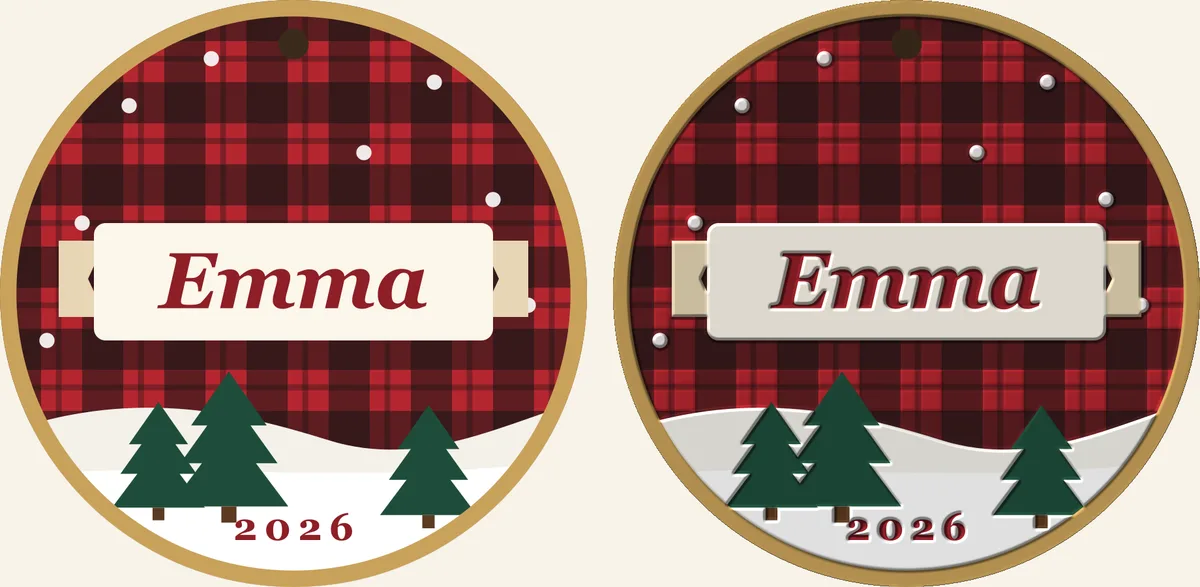
▼ You look from this side
Ink modes
The projects the toolkit writes carry the ink mode you pick, so the Omni prints what you meant without re-setting layers in xTool Studio.
Questions
Yes. The jig builder designs a holder for your blank (rectangle, rounded or circle) with as many pockets as fit the Omni’s full 330 × 420 mm bed, each with a finger notch so the blank lifts out, and gives you an SVG to cut on a laser or an STL to 3D print at 3 or 6 mm, checked against your 3D printer’s bed. Then it lays your art into every pocket and saves an xTool Studio project for the Omni. A paper test prints just the pocket outlines first, so you can check the alignment before you spend a blank.
The Omni runs from xTool Studio. Everything the toolkit makes for it is an xTool Studio project (.xs) that opens with the images placed, sized and set up, written from real projects xTool Studio saved for the Omni.
Yes, with the lasers xTool pairs it with: the P3, P2S, P2, M2, S1 or M1 Ultra. Cutout Studio saves one xTool Studio project with both steps: the Omni prints the art, then your laser cuts the outline around it. Set the cut speed and power for your material in the project before you run it.
Pick the ink mode before you save. The toolkit writes every mode xTool Studio offers for the Omni: White + Color; White + Color + Varnish; Color only; White only; Varnish only; Color + Varnish; White + Varnish; Color, then white (behind clear acrylic). White under color is the usual choice for dark or clear blanks; “color, then white” is for printing on the back of clear acrylic.
Yes. The relief maker turns a photo or logo into a height map, previews it in 3D, and saves an xTool Studio project already in Relief print with your map loaded as the depth map. Logos get a crisp beveled edge; photos can raise the light or the dark areas.
Yes, and that is a fair way to try both workflows. The jig builder, relief maker, Cutout Studio and Batch Maker save ready projects for the eufyMake E1 (eufyMake Studio, .empf) and for the xTool O1 Omni (xTool Studio, .xs) from the same design. The Omni also pairs with an xTool laser for print-then-cut in one project. We don’t sell either machine and we aren’t paid by either company.
What makers already sell from a UV printer, made faster: personalized names on keychains, magnets, coasters and ornaments laid out in a jig; stickers printed and cut on an xTool laser; raised logo and photo prints; UV DTF decals and tumbler wraps. The pricing calculator tells you what to charge so the work pays.
No to both. The tools are free and run in your browser; your art never leaves your computer. Eighteen of the twenty-three Maker Toolkit tools are free, and the Batch Maker is for Maker Growth Hub members.
After the machine
The Maker Growth Hub works on everything after the print: pricing that pays, listings and photos that sell, and the systems that keep a busy week from running you.
See what’s inside the HubNot ready yet? Start free: the Maker AI Starter Kit.
Tools for the eufyMake E1 → · All twenty-three maker tools →